
Run it like a company system, not a side project.
AiServa gives each organisation its own Client Console: people, roles and record levels, sign-in rules, approvals, servers and models, and a developer API. Staff work in the Client Portal on a computer or phone; administrators run everything else.
Client Portal
Where staff work: AI Agent, knowledge bases, files, approvals and settings. Installs on a phone home screen like an app.
Client Console
Where an organisation's administrators manage people, servers, models, apps, tools and the API.
Admin Console
Where VYROX Platform Admins look after organisations, subscriptions and the Skill Library.

Everyone sees only what they should.
Access is set by role and fine-tuned per person, then enforced on the server for every page, record, tool and knowledge base.
- Roles
- 27 permission areas, each with the rights that apply to it (view, create, edit, delete), plus 9 separate tool-use rights.
- Per-Person Overrides
- Allow or Deny any right for one person without changing their role.
- Record Levels
- Own, Department or All, set per role and overridable per person.
- Departments
- A department tree; a person can belong to more than one.
- Tools They Can Use
- Internet Searcher, Email, Browser Controller, image and document attachments, Create Files, AiServa Desktop, Share Files and MCP Servers, per role or per person.
- What AI Agent Can Use
- For any person, one list of the tools, MCP servers, knowledge bases, skills, commands, plugins and apps AI Agent will be offered, and the reason when something is not.
- Tokens and Cost
- The Usage page shows the tokens each API key, AI server and model used, with reasoning tokens split out. Set your own price per cloud model to see estimated cost, and check the account balance where the provider allows it.
- App Overviews
- Organisation totals for Task Summary, Approvals, To-Do Lists and Calendar in one place: adoption, waiting requests and events ahead. Never what anyone wrote.
- Approvals Manager Review
- Switch on Manager Review so a person's manager decides first. Nobody ever approves their own request.
- Bug Reports and Feature Requests
- Anyone can report a problem or ask for a feature with up to 5 screenshots and follow the thread. Administrators with the right see the organisation queue.
- Knowledge Base Access
- Named People Only, Department or All Staff, with Allow or Deny per person or role.
Roles and people, in one console.


Sign-in rules your organisation sets.
Sign-in rules you can check.


Approvals, sharing and notices, built in.
Approvals
Ask for access to a knowledge base, an app or a permission, or raise any other request. The approver sees it in the Approvals panel beside the AI Agent and in the Notification Center, and approves or rejects with one press.
- Grants last Until Revoked, or 1, 7, 30 or 90 days.
- Nobody can approve their own request.
- Open requests expire after 14 days; each person can have 20 open at a time.
- Every step is kept on the request's timeline.
File Sharing
Share with up to 25 people as Can View, Can Download or Can Edit, with an optional expiry. Each file keeps its full history: opened, edited, shared, downloaded and more.
Notification Center
One panel for every notice, with approvals waiting on you shown first and ready to approve or reject.
An AI Agent for administrators. The first icon in the Client Console opens the Client Portal: an AI Agent that answers questions about your organisation, such as who can use what, limited to what that administrator is already allowed to see.
Console Apps: everyone's apps, managed in one place.
People use their apps beside each task. Administrators get the same apps in the Client Console, for the whole organisation, within their own rights and record levels (Own, Department or All), plus two apps only the console has.
Task Summary
Every task in the organisation: who, where from, runs, failures and files, with Legal Hold.
Knowledge Bases
Create, change, archive and transfer every knowledge base, and see their health.
To-Do List
Assign to-dos to people, departments or roles and follow their progress.
Calendar
Organisation events for everyone, a department or a role, and who is free when.
Scheduled Tasks
Every scheduled task: when it runs, how it went; pause one or make it read-only.
Approvals
Every request, where it is stuck, who decides, and the grants in force.
Web Browser
Every browser run, the connected Chromes and the sites AI Agent may visit.
Notifications
Announcements to everyone, a department, a role or named people, and who read them.
Adoption Insights
Seats, tasks, trends and departments: how much AI Agent is really used.
Access Review
Accounts to check: long unused, no two-step sign-in, locked out or never signed in.
See what is waiting, and what was decided.


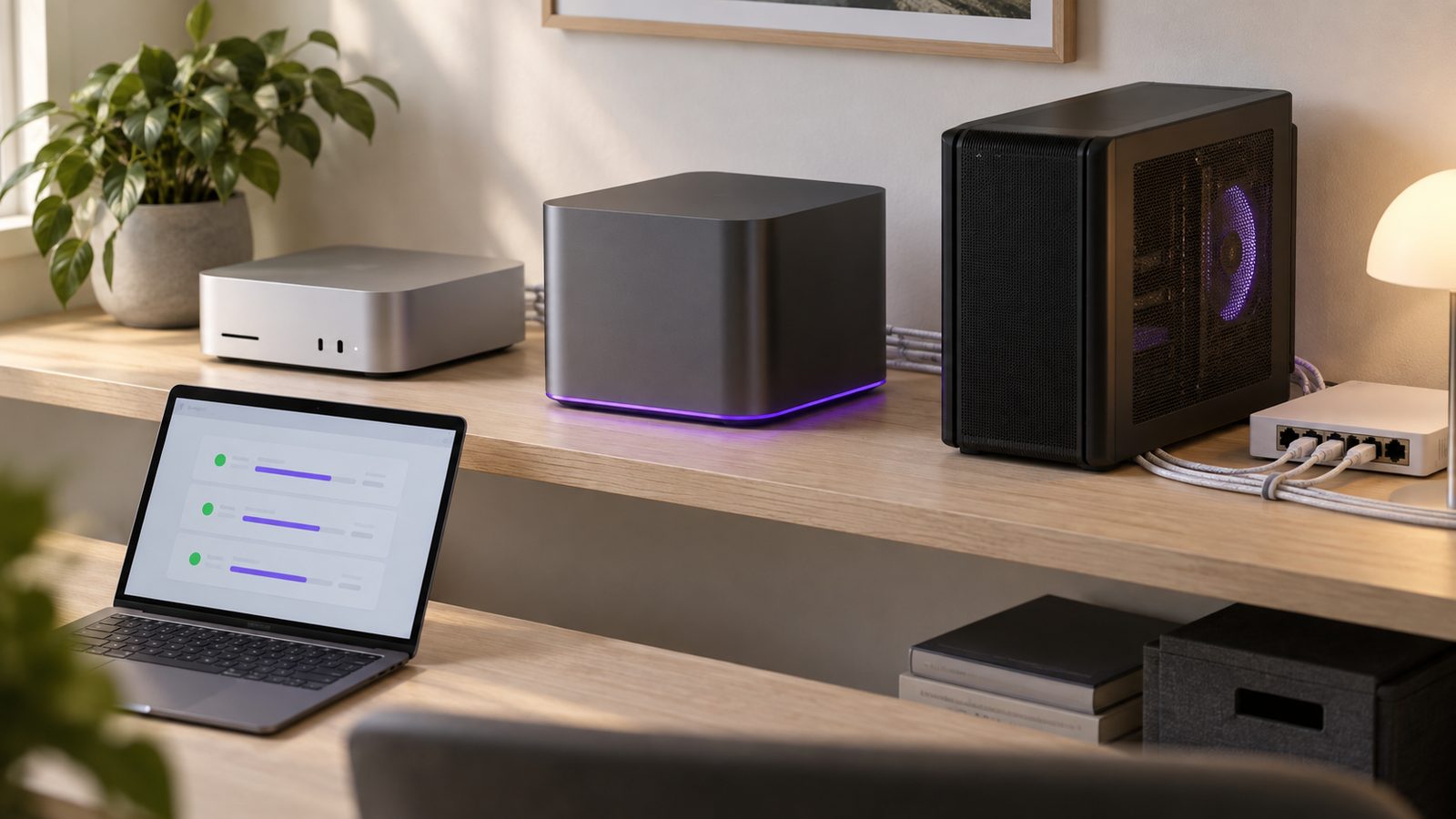
Servers and models, managed from the console.
Pair an AiServa server, or hardware you already own, with a one-line installer for macOS, Linux or Windows. After that, everything is managed from the browser.
- Server page tabs: Overview (processor, memory, disk, graphics and connection), Models, Service and Settings.
- Install, switch, stop, turn on or off and remove models, with a hardware-fit check and a Recommended badge.
- Start, stop, restart or update the service; the server software updates itself by default.
- Connect a server running vLLM, LM Studio, llama.cpp or LocalAI directly, as an OpenAI-compatible endpoint.
27
local chat models from 9 families
9
local embedding models
34
cloud providers, plus any OpenAI-compatible endpoint
0
models or keys supplied by AiServa itself
Local families: Qwen (the default), Gemma, gpt-oss, Llama, DeepSeek-R1, Mistral, Phi, Granite and Nemotron. Cloud, with your own key: OpenAI, Anthropic, Google Gemini, xAI, Mistral, DeepSeek, Alibaba Qwen, Moonshot Kimi, Z.ai GLM, OpenRouter, Groq, Together, Fireworks, NVIDIA NIM and many more. See the AiServa server range.
Servers, models and cost.


An API that runs AI Agent, and signed webhooks.
Version 1 of the API lets your systems give AI Agent a task and collect the answer and the files it made, search knowledge bases, work with memory and read usage. Webhooks tell them when things happen. Keys and webhooks are managed in Client Console, under Developers, with API Docs alongside and an OpenAPI 3.1 file for your tools.
Runs as a Person, Under Your Rules
Each run happens as the key's creator, with the organisation's models, tools, Rules, Emergency Stop, Private Mode and Spending Limits. Nobody is there to approve, so anything that would ask is refused. Tasks are read-only unless the key has Allow Actions, and every run appears on Agent Runs.
Keys
Sent in the X-Api-Key header. Shown once, stored as a hash, with scopes (tasks, knowledge, memories, apps, usage and reports), an optional IP allow-list and expiry. Idempotency-Key makes a POST safe to retry.
Rate Limits
120 requests a minute per key and 600 per organisation; 30 a minute per key for tasks, knowledge and memory; 3 running tasks per key. Rate-limit headers and Retry-After.
Clear Errors
Every error returns a machine-readable code, a plain message and a request id you can quote to support.
Webhooks
https only, signed with HMAC-SHA256 in X-Aiserva-Signature, retried after 1 minute, 5 minutes, 30 minutes, 2, 6 and 12 hours for up to 24 hours, and turned off after 20 failures in a row. Send Test checks your endpoint.
Webhook Events
Tasks and scheduled tasks completed or failed, approval requested or decided, Emergency Stop, server online or offline, people created, updated or deactivated, an app's model or knowledge base changed, subscription ending or ended, and bug report updates. Deliveries carry ids and statuses only, never what anyone wrote.
Your name, and a clear record.


Admin, Security and API Questions
Who manages users and permissions in AiServa?
Each organisation manages its own people in the Client Console: roles, departments, per-person Allow and Deny overrides, record levels (Own, Department or All) and which tools each person can use. VYROX does not need to be involved for day-to-day administration.
Does AiServa support two-step sign-in?
Yes. Two-step sign-in uses any authenticator app (6-digit codes every 30 seconds) with 10 one-time recovery codes. An organisation can require two-step sign-in for everyone, set a minimum password length from 10 to 64 characters, and limit new accounts to its own email domains.
Can we see who is signed in and sign them out?
Yes. Each person can see the browsers they are signed in on and sign any of them out remotely. Staying signed in lasts up to 400 days while in use, so people are not asked to sign in every morning.
Which AI models can we use?
The catalogue lists 27 local chat models from 9 families (Qwen, Gemma, gpt-oss, Llama, DeepSeek-R1, Mistral, Phi, Granite and Nemotron) and 9 local embedding models, plus 34 cloud providers and any OpenAI-compatible endpoint with your own key. Servers running vLLM, LM Studio, llama.cpp or LocalAI can also be connected directly.
What can the AiServa REST API do?
Version 1 lets your systems run AI Agent tasks: start a task with a message, continue it, read the run's status, answer, files, usage and trace id, download the files AI Agent made, and stop a task. The same keys can search knowledge bases, work with memory, file bug reports and feature requests, and read usage. Keys have scopes, an optional IP allow-list and expiry, and rate limits. Signed webhooks tell your https endpoint when a task finishes, a server goes offline, an approval is waiting and more.
Can a task started through the API send email or change data?
Only if the key has Allow Actions; otherwise the task is read-only. Each run happens as the person who created the key, with the organisation's models, tools, Rules, Emergency Stop, Private Mode and Spending Limits. Nobody is there to approve, so anything that would ask a person first is refused, and every run appears on Agent Runs.
Can an administrator see what AI Agent can use for one person?
Yes. What AI Agent Can Use, in AI Agent Settings, lists for any person the tools, MCP servers, knowledge bases, skills, commands, plugins and apps AI Agent will be offered, and why anything is not. Each person can also see their own list in their Settings.
What are Console Apps?
The same apps people use beside their tasks (Task Summary, Knowledge Bases, To-Do List, Calendar, Scheduled Tasks, Approvals, Web Browser and Notifications) at organisation level in the Client Console, so an administrator can manage every person's records within their own rights. Two apps are console-only: Adoption Insights and Access Review.
Can we give the assistant our own name?
Yes. Under AI Identity an organisation sets the assistant's name, how it introduces itself and whether it names the real model behind it. Branding adds your logo and accent colour to a sign-in page of your own.
How are requests for access approved?
Through Approvals. A person asks for access to a knowledge base, an app or a permission, their approver approves or rejects it, and grants can last until revoked or for 1, 7, 30 or 90 days. Nobody can approve their own request, and open requests expire after 14 days.
See the Client Console for yourself.
Create a workspace and you are its first administrator: set up roles, sign-in rules, servers, models and the API yourself. Free for 14 days.