
The AI Agent, on your own computer.
AiServa Desktop is the AiServa AI Agent as an app for macOS, Windows and Linux. It signs in to your organisation, uses the models and tools your admins have set up, and works on files in a folder you open. No API keys ever sit on the laptop.
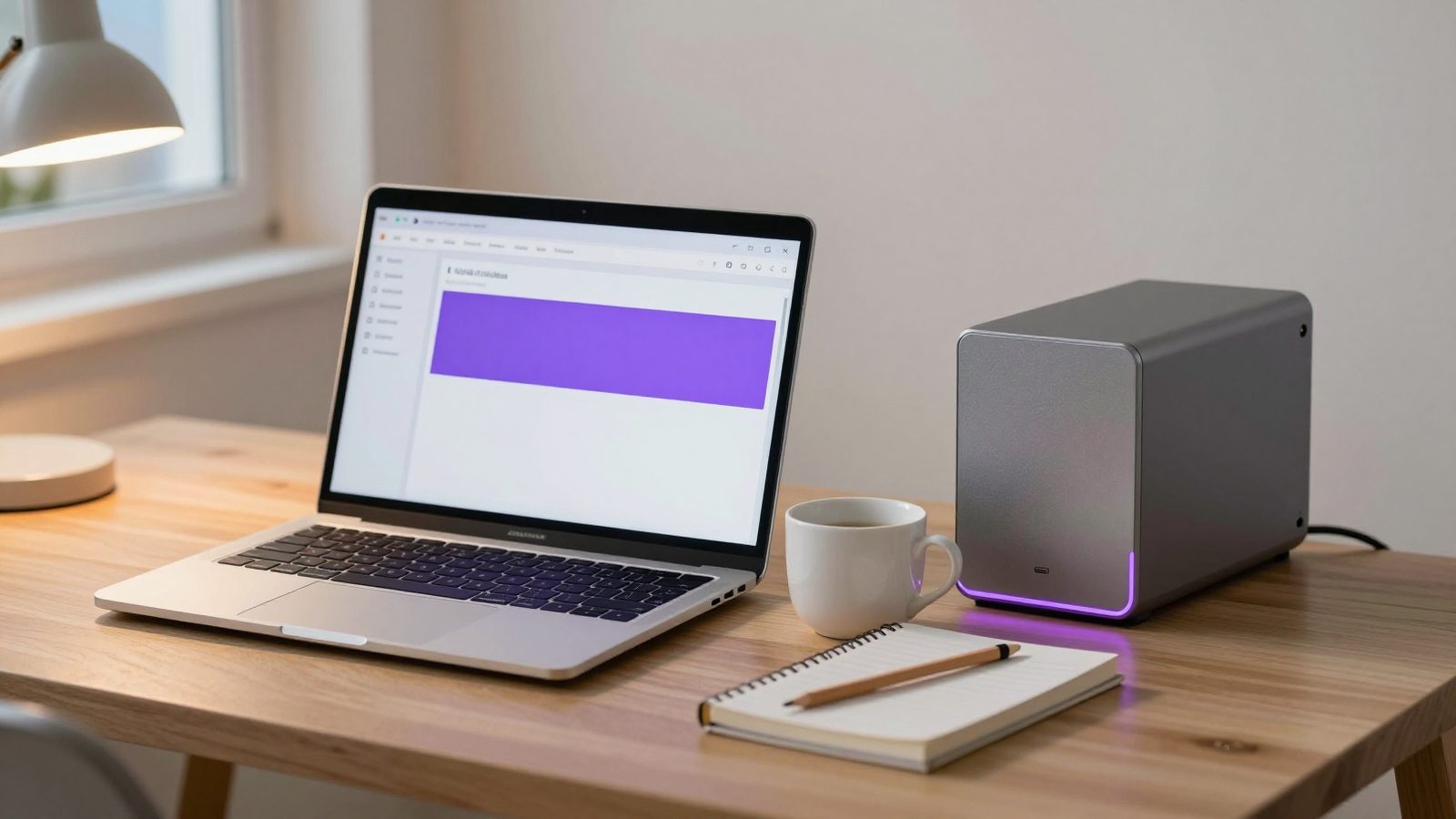
A desktop client. Your server stays the brain.
AiServa Desktop is built on OpenCode, an open-source AI agent released under the MIT licence. AiServa keeps every rule on the server: who may use which model, tool and knowledge base is checked on each call, so the app on the laptop never becomes a way around your policies.
Your Organisation's Models
The app talks to an OpenAI-compatible gateway on AiServa, which serves only the models your organisation allows: a local AI server, or a cloud provider your organisation added its own key for. Retry and the Backup Model work the same as on the web.
Tasks That Follow You
Tasks sync both ways with the web portal and your phone. Start a task at your desk and carry on from anywhere, with the same history.
Your Local Files, Fenced
Open a folder as a Workspace and the agent can read and work on the files in it. Nothing outside that folder is reachable by its local tools.
Portal Panels Beside the Task
The Summary, Knowledge Bases, To-Do Lists, Calendar, Approvals and Notifications panels open in a side column of the app, in a sealed view that opens the portal with a one-time code, so you are never asked to sign in twice and no password is typed into it.
System Notifications
A reminder, an approval waiting for you or a shared file shows as a normal desktop notification, and clicking it opens the right panel.
Dictate a Prompt
When your administrator turns Voice Dictation on and the Speech Reader is installed on your AI server, a microphone button in the prompt box types what you say. On the desktop it works with the Your AI Server engine only.
Two modes. Admins decide which.
Default
Simple Mode
For everyone. A clean agent window centred on documents, knowledge bases and files, without terminals or code views. Ask a question, hand it a folder of files, get a cited answer or a finished document back.
Optional
Developer Mode
For technical staff. Shows the coding interface from OpenCode, such as the terminal and file changes, so developers can work on a code folder with the same organisation models and tools.
Your organisation's admins choose which modes are allowed. Each person then switches between the allowed modes in Settings.
The organisation's tools, on the desktop.
AiServa hands the app its tools over MCP, the open Model Context Protocol. Each one is checked against your own rights every time it is used, so you only get the tools your role allows. See Skills, Apps and Connectors for how organisations add their own.
Internet Searcher
Searches the web with your organisation's search tool and reads the linked pages.
Page Reader
Reads a web page or a long PDF from a link.
Knowledge Search
Searches the knowledge bases you are allowed to use and cites the sources.
File Maker
Creates PDF, Word, Excel, PowerPoint, CSV, Markdown and other files.
Document Reader
Reads the text of a document you hand it.
PDF Tools
Merges, splits and extracts pages from PDFs.
Email
Sends email through your organisation's mail settings.
Web Browser
Drives a browser on your AI server for multi-step web tasks.
Memory
Lists, saves and forgets your personal memories.
Your MCP Servers
Any MCP servers your organisation has added.
MCP Servers That Ask First
Each MCP server is set to either No Need to Ask or Ask Before Every Use. On the desktop, an MCP server set to Ask Before Every Use shows you a prompt before each call, so you approve it or skip it. MCP server keys stay on the AiServa server and never reach the laptop.
Signed in safely. Nothing secret on the laptop.
- 01
Get a Code
The app shows an 8-character one-time code, valid for 10 minutes.
- 02
Approve in the Portal
You sign in to the AiServa portal with your password and two-step code, and approve this device.
- 03
Device Token
The app receives a revocable device token. It lasts 400 days while in use and can be revoked at any time.
- 04
Work
Every call goes to your organisation's gateway, which checks your rights and keeps all keys server-side.
No Provider Keys
Cloud API keys, email passwords and MCP server keys stay sealed on the AiServa server. A lost laptop means revoking one device token, not rotating every key.
Workspace Folder Only
Local tools are limited to the Workspace folder you opened. The rest of the computer is out of reach.
Local Server on 127.0.0.1
The app's local server listens only on 127.0.0.1, so other machines on your network cannot connect to it.
Install with one line.
AiServa Desktop is downloaded from your AiServa portal, not an app store. Sign in, open Profile > Download, and copy the command for your system. The commands below show the pattern only: copy the real command from your portal.
Checked Before It Installs
The one-line installer checks the download's SHA-256 fingerprint before installing. If it does not match, nothing is installed. The fingerprint of each download is also shown in the portal, so your IT team can compare it.
Only for Allowed Roles
The download appears for people whose role is allowed to use the desktop app. Admins control this in the Client Console, alongside the other apps and tools.
Need an AI server to power it? See the AiServa server range.
AiServa Desktop Questions, Answered
What is AiServa Desktop?
AiServa Desktop is the AiServa AI Agent as an app on your own computer. It is built on the open-source OpenCode project (MIT licence), signs in to your AiServa organisation, and uses your organisation's models, knowledge bases, memory and tools, plus files in a folder you open on your computer.
Does AiServa Desktop store API keys on my laptop?
No. The app never holds provider keys, email passwords or MCP server keys. It holds only a device token that you or an admin can revoke. Every model call goes through your organisation's AiServa gateway, which keeps the keys on the server.
How do I sign in?
The app shows a short one-time code. You open the AiServa portal, sign in with your password and two-step code as usual, and approve that device. The code is valid for 10 minutes. After approval the device stays signed in for up to 400 days while it is used, and can be revoked at any time.
Can the AI read every file on my computer?
No. Local tools only work inside the Workspace folder you open in the app, and the local app server listens only on 127.0.0.1, so nothing on your network can reach it.
What is the difference between Simple Mode and Developer Mode?
Simple Mode is the default and centres on documents, knowledge bases and files. Developer Mode adds the coding interface, such as a terminal and file changes. Your organisation's admins decide which modes are allowed, and each person switches in Settings.
Which systems does AiServa Desktop run on?
macOS on Apple silicon and Intel, Windows (64-bit) and Linux (AppImage or .deb). Downloads for each system are listed in the portal as releases become available.
How do I install it?
Sign in to the AiServa portal and open Profile > Download. Copy the one-line command for your system into Terminal (macOS) or PowerShell (Windows), or download the installer file. The installer checks the file's SHA-256 fingerprint and installs nothing if it does not match.
Do my tasks sync with the web portal?
Yes. Tasks sync both ways, so a task started on the desktop can be continued in the web portal or on your phone, and the other way round.
Put the AI Agent on every desk.
Create a workspace, allow AiServa Desktop for the roles that need it, and each person installs it from Profile > Download. Free for 14 days.